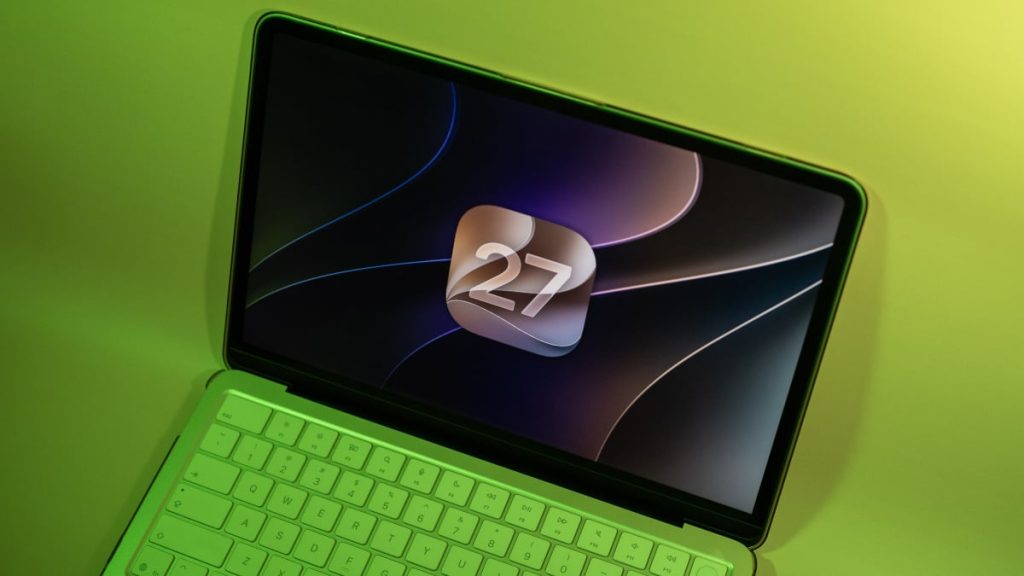
Apple’s ’27’ Era: What You Need to Know
Apple’s ’27’ era is finally here, and it’s time to get excited about the latest macOS update. The macOS 27 beta is now available for public testers, and with it comes a slew of new features and improvements.
While the update may not be as feature-packed as some past macOS revisions, it does bring one major change: Apple Intelligence updates, including Siri AI. But what does this mean for you, and how can you get your hands on the macOS 27 beta?
Understanding the Risks of Installing the macOS 27 Beta
Before you dive headfirst into installing the macOS 27 beta, it’s essential to understand the risks involved. Betas are not finished software, which means they can ship with bugs and glitches that wouldn’t normally make it to an official update.
However, Apple has taken steps to mitigate these risks by allowing public testers to try out the beta before the general public. The public beta is the safer way to go about beta testing, as it allows Apple to squash any major issues that arise during developer testing.
That being said, it’s still crucial to back up any important data before installing the beta. Make sure all photos, documents, messages, etc. are saved somewhere secure, and not just included in an iCloud backup, in the event you lose data through the beta process.
Which Macs are Compatible with macOS 27?
While every iPhone that supports iOS 26 also supports iOS 27, the same isn’t the case for macOS. In fact, this year marks Apple’s official departure from Intel, as none of its Intel-based Macs support macOS 27.
So, which Macs are compatible with macOS 27? The official list includes:
- MacBook Neo
- MacBook Air with Apple silicon
- MacBook Pro with Apple silicon
- iMac with Apple silicon
- Mac mini with Apple silicon
- Mac Studio
- Mac Pro with Apple silicon
Essentially, if your Mac’s chip has an ‘M’ in its name (e.g., M1, M5), it’s compatible with macOS 27.
How to Install the macOS 27 Public Beta
Before you can install the beta on your Mac, you need to enroll your Apple Account in Apple’s beta program. Make sure the Apple Account you sign up with is the same one you use with your Mac.
Head to System Settings > General > Software Update, then hit the (i) next to ‘Beta Updates.’ Click ‘Off’ next to ‘Beta Updates,’ then choose ‘macOS 27 Golden Gate Public Beta.’ Now, hit ‘Done.’ From here, it’s the same as installing any other macOS update.
How to Install the macOS 27 Developer Beta
At this stage, the macOS developer beta is also safer than it used to be. Apple will continue to release new macOS 27 beta updates to developers first before releasing them to public testers, which makes it the best choice for users who want as early access to new updates as possible.
However, this means you lose the protections that come with the public beta’s slight delay. If you’re okay with that, you’ll first need to enroll your Apple Account in the developer program. There used to be a $99 paywall here, but there is now a free option for anyone who just wants to try the developer beta.
Once enrolled, head to System Settings > General > Software Update, then click the (i) next to ‘Beta Updates.’ Click ‘Off’ next to ‘Beta Updates,’ then choose ‘macOS 27 Golden Gate Developer Beta.’ From here, hit ‘Done,’ then follow the on-screen instructions to download and install the update.