Uncovering the Hidden Document Scanner on Your iPhone
As a frequent user of my iPhone to scan physical documents, I’ve relied on third-party apps like Scanner Pro to get the job done. However, I’ve recently discovered a powerful built-in document scanner hidden in the Preview app, which is a game-changer for anyone looking for a convenient and free solution.
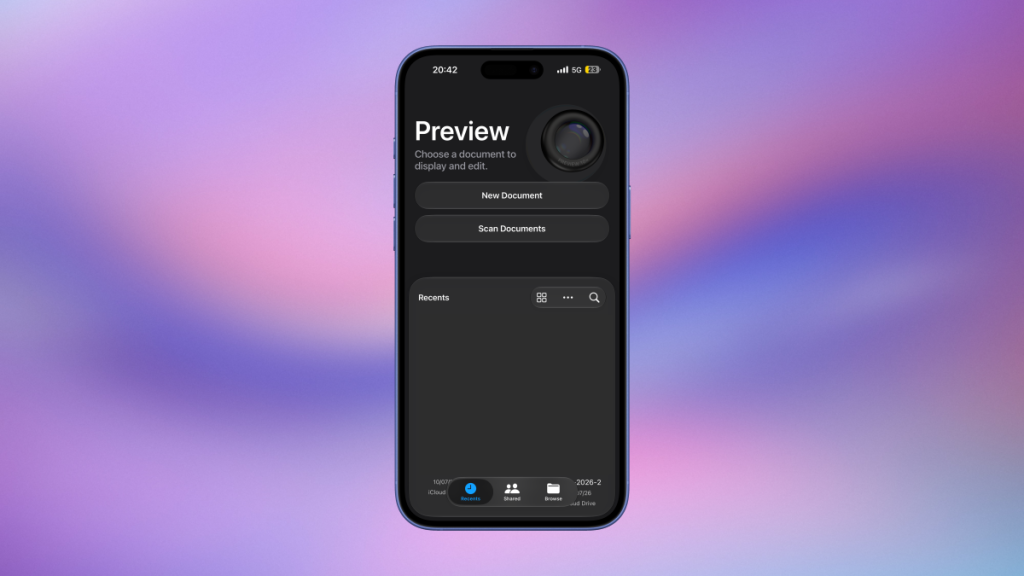
The Preview app, introduced with the release of iOS 26 in 2025, is a built-in app on your iPhone that allows you to preview and edit documents. When you open a document in the Files app, your iPhone will automatically switch to Preview and load the document. However, if you open the Preview app directly, you’ll see a ‘Scan Documents’ button front and center.
When you tap ‘Scan Documents’ in Preview, your iPhone will fire up the viewfinder, and you can point the device at the documents you want to scan. Like Scanner Pro, the Preview app’s scanner automatically identifies document borders, takes a picture to scan, and reopens the viewfinder so you can point the camera at the next page. This process is fast and intuitive, making it perfect for scanning multiple pages quickly.
When the scanner is open, you’ll see four buttons near the bottom of the screen. The big shutter button lets you manually click pictures for the scan, and the other three let you toggle flash, set color filters, and toggle on the auto-shutter feature, respectively. Auto shutter is the best feature of this app, as it automatically scans a page the moment it detects borders, but it’s not perfect. If you want more precise control over your scans, you can disable it, and control the shutter manually.
One of the main advantages of using the Preview app’s scanner is that it automatically saves the scanned document to your iCloud Drive folder, without the need to export it. This makes it easy to access and share your scanned documents with others.
Compared to the document scanner in the Apple Notes app, Preview’s scanner is much faster and more convenient. The Notes app requires you to open a note, tap the paperclip icon, and select the document scanner from the menu, which can be a hassle. In contrast, the Preview app’s scanner is easy to access and use, making it the better choice for most users.
If you’re looking for more features than Apple’s document scanner, there are third-party apps like Adobe Scan that may suit your needs. Adobe Scan offers a generous free tier, including unlimited scans, 2GB of space in Adobe Document cloud, and OCR for documents up to 25 pages long. However, even the free tier requires you to sign up for an account, which can be an unnecessary step for those who just want an app that’ll let them start scanning the moment it’s installed.
Why You Should Switch to Preview’s Document Scanner
Switching to Preview’s document scanner is a no-brainer for anyone looking for a convenient and free solution. With its fast and intuitive scanning process, automatic document border detection, and easy access to your scanned documents, it’s the perfect choice for anyone who needs to scan physical documents regularly. So why not give it a try and see the difference for yourself?
Some of the benefits of using Preview’s document scanner include:
- Fast and intuitive scanning process
- Automatic document border detection
- Easy access to your scanned documents
- Automatic saving to iCloud Drive folder
What to Do Next
If you’re ready to switch to Preview’s document scanner, here’s what you need to do:
- Open the Preview app on your iPhone
- Tap the ‘Scan Documents’ button
- Point the camera at the documents you want to scan
- Follow the on-screen instructions to scan your documents
That’s it! With Preview’s document scanner, you’ll be able to scan physical documents quickly and easily, and access them from anywhere.