iOS 27 Revolutionizes iPhone Recovery
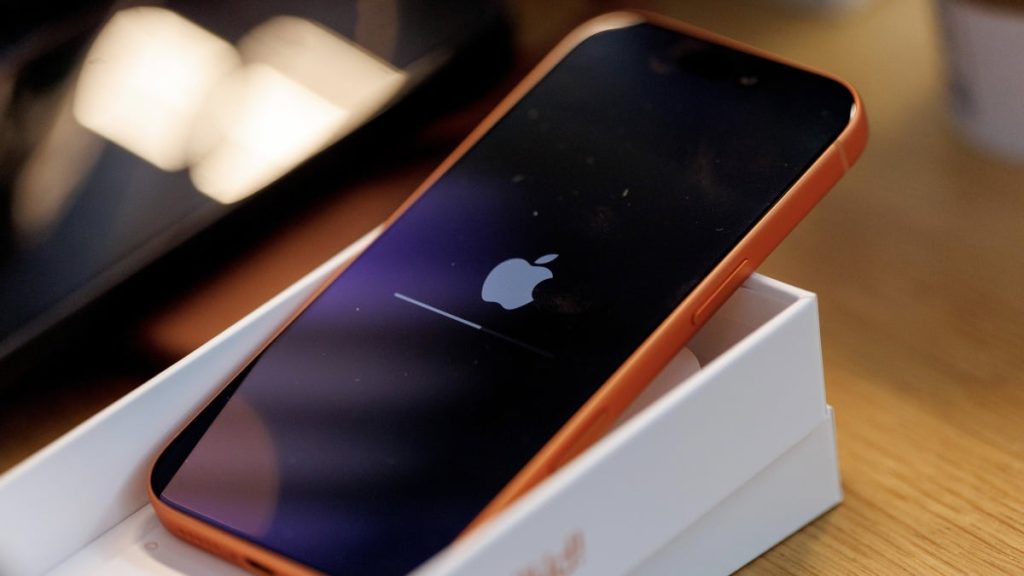
Your iPhone is more than just a smartphone – it’s a mini computer that can handle various tasks with ease. However, when it comes to system recovery, you’ve traditionally needed a computer to restore your iPhone. Apple is changing this with the latest update, iOS 27, which introduces a macOS-like recovery mode that lets you troubleshoot and fix software issues directly within iOS.
The recovery mode in iOS 27 offers several features that can help you identify and fix software problems on your iPhone. These features include:
- Recovery Assistant: This feature automatically identifies and tries to fix software issues on your iPhone.
- Software Update: This option uses a nearby iPhone or iPad to update your iOS device to the latest version. This could help if your device is having trouble booting into an older version of the operating system.
- Diagnostics Mode: This option helps Apple employees diagnose problems and decide how to proceed with repair. It’s also how Apple checks your iPhone for defects during the trade-in process.
- Erase All Content and Settings: This option lets you format your iPhone and reset it to factory settings. Again, this option is helpful if your iPhone is unable to boot into iOS.
- Recovery Mode: This option lets you connect your iPhone to a computer and restore it to factory settings.
Accessing recovery mode in iOS 27 is relatively straightforward, but you should only do so as a last resort. Before you start using recovery modes regularly, try restarting your device once, updating to the latest version of iOS, or reinstalling any problematic apps.
To access recovery mode, follow these steps:
- Press the Volume Up button and release it.
- Press the Volume Down button and release it.
- Immediately after this, hold down the Side button (power button).
- Keep holding the button even after the Apple logo appears.
- You’ll see a message that reads, ‘Continue holding for recovery.’
- You can release the power button when you see ‘Loading recovery options…’ on screen.
When you’re finished using recovery mode, hit the power button in the top-right corner of the screen, and tap Restart. This will reboot your iPhone and bring you back to its lock screen.