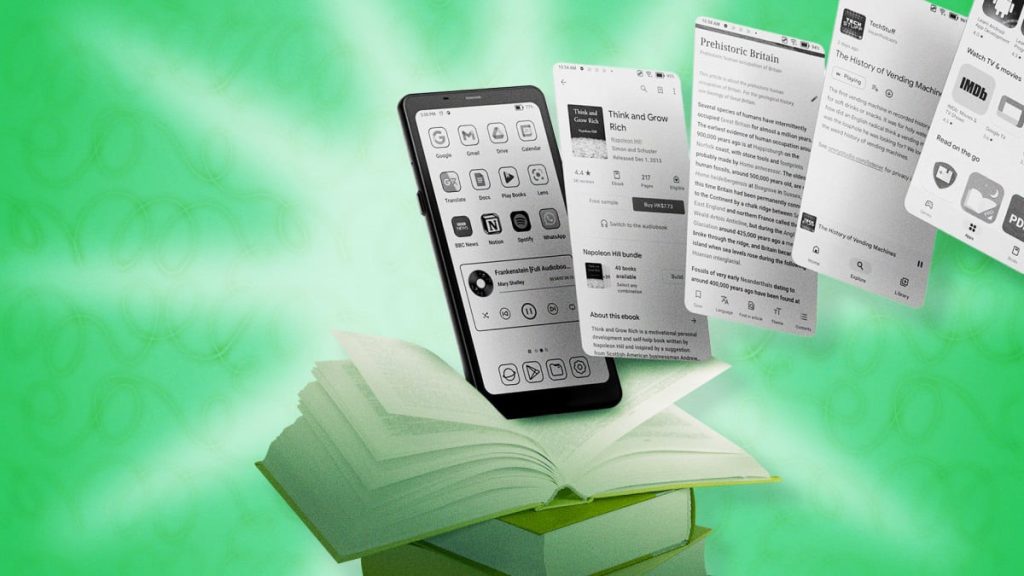
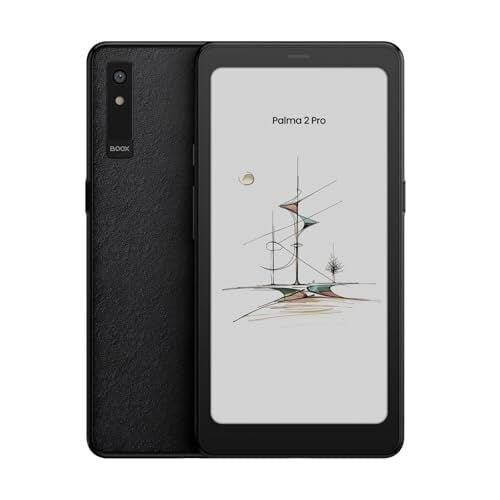
While the Kindle is the most popular e-reader in the world, it’s not the best option for people who want more control over their digital libraries. If you’re a true e-book nerd, you’ve probably heard of the Boox Palma, the e-ink device with a phone-like form factor that has attracted a huge cult following on social media.
Source: lifehacker.com
The thing about the Palma, though, is that it’s way more than an e-reader—it costs about the same as an Android tablet because it basically is one. You can sideload your e-books to read on the native reading app (called NeoReader), or you can install most any app from the Google Play Store. In short, it can do way more than a Kindle, but that also means it can be way more complicated to get it working how you want to. To that end, here are five ways to get more out of your Boox e-reader (whether that’s the original Palma, the Palma 2, or the Palma 2 Pro).
Adjust Your Palma’s Settings to Turn Pages with the Volume Buttons
Unlike all modern Kindles, the Boox Palma still has physical buttons, which is a big plus for anyone who prefers not to turn pages with a touchscreen. Unfortunately, not all apps are configured to recognize a press of the volume up or down button as a request to turn the page. Fortunately, this is typically an easy fix, though you’ll have to check your settings in a few different spots to get it working.
To use the volume buttons to turn pages in the Kindle app, for instance, you’ll need to navigate to any book, tap the center of the screen to bring up the reading overlay menu, then tap the "Aa" icon to open display settings. From there, you’ll need to tap the "Layout" tab and make sure the slider next to "Continuous Scrolling" is turned off. Now tap the "More" tab and scroll down until you see "Turn Pages with Volume Controls" and set that slider to on.
If you’re using a different reading app, you can try enabling page turns with the volume buttons by going to the system-level settings menu. Long-press the app icon on the home screen to open quick settings and tap "Optimize." From there, tap the "Others" tab and look for the "Customize Buttons" menu option. Tap the icon on the far left that looks like a in a circle to set the Volume button setting to "Page-turning."
Disable Your Palma’s Touchscreen with a Shake to Stop Accidental Page Turns
If you’re a "turn pages with the buttons" kind of person, you might also want to turn off the touchscreen so you don’t accidentally turn the page if you touch the screen accidentally or put your Palma in your pocket without putting it to sleep first. Unfortunately, there’s no system- or app-level setting for this, but you can accomplish it with a third-party app.
There are a ton of options for these kinds of apps on the Google Play Store, but some of them will go too far by disabling physical buttons as well, while others will fill your screen with ads. A better alternative is an app called Touch Protector, but it’s not on Google Play—so you’ll have to install the Aptoide app store first. Aptoide is a decentralized, open-source alternative to Google Play.
Using a decentralized app store means you’re opening yourself up to a bit more risk, so look for apps with the green "Trusted" icon, indicating that they have been scanned for malware and compared against apps in other app stores to ensure they aren’t copycats. You’ll also need to be comfortable with overriding some system-level security recommendations; I wouldn’t do this on a device I use for financial transactions or reading e-mails, but all I do with my Palma is read.
With those disclaimers out of the way, here are the steps involved in disabling the Palma’s touchscreen with a shake:
First, navigate to the Aptoide app store from your Palma’s web browser, then tap the "More" option on the lower right; on the next screen, tap "Get Aptoide." (You’ll have to click through some permissions screens indicating you understand there’s risk in downloading an app APK file from an "unknown" source.)
Once you’ve downloaded the Aptoide APK file, open it from your downloads folder and install it (this will require another security acknowledgement). Once installed, open Aptoide and search for "Touch Protector" (or use this link). The first time you use Aptoide, you’ll be prompted to give it system-level permission to install apps; it will open the relevant settings menu automatically.
Open the Touch Protector app. The first time you do, you’ll be prompted to give it "Display over other apps" permissions. The settings menu for this option will likewise open automatically; scroll down to Touch Protector, tap it, and turn the slider to "On." (If Android prevents you from doing this here, you’ll need to do it manually: Open Settings > Apps & Notifications > Applications. Find "Touch Protector" in the apps list and tap the slider next to "Display on top of other apps.")
Now you’ll need to configure your Touch Protector settings to choose how you’ll lock and unlock the touchscreen. I suggest tapping "Shake," which allows you to toggle the option on or off by gently shaking your device. (Yes, you can adjust how hard you need to shake it so you won’t do so accidentally.)
Set a One-Touch Refresh to Instantly Get Rid of "Ghosting" on the Palma
Like any e-ink tablet, Boox devices suffer from occasional "ghosting," or visible afterimages once you’ve turned a page. While the device will automatically refresh itself after a certain number of screen touches and you can adjust your settings so it refreshes more often, I like to set a one-touch refresh that I can trigger whenever I want. This is convenient, because some types of content, including anything with images, will require more frequent refreshes than others.
There are two ways to set a one-touch manual refresh: a button or a gesture. You can use a button to perform a one-touch refresh by mapping this function to any button, but it makes most sense to use the Palma’s Smart Button for this—that’s the button on the top left-hand side of the device, and it can do different things based on whether you press it once, twice, or hold it down.
To remap your Smart Button, open the Settings app and tap "Smart Button." Tap your preferred option ("Short-press Function," "Double-click Function," or "Long-press Function") and select "Full-refresh." Alternatively, you can use a gesture to perform a one-touch refresh by going to the Settings app and tapping "System Navigation." Under "Bottom Navigation," tap "More Settings." Choose the area of the screen you’d like to map the refresh to by swiping between the left, center, or right side options. Tap "Custom" and then choose "Full-refresh" from your list of options.
Manage Your Sleep Settings So You Can Listen to Audiobooks or Podcasts with the Palma’s Screen Off
Listening to audiobooks or podcasts on the Palma can be a frustrating experience, especially if you have a case with a magnetic cover that puts the device to sleep when you close it, as doing so will also pause any audio you’re listening to. To manage your sleep settings, you can go to the Settings app and tap "Display." From there, you’ll need to tap "Sleep" and adjust the settings to your liking.
For example, you might want to turn off the "Auto-sleep" option, which will prevent the device from going to sleep when you close the cover. You can also adjust the "Screen timeout" setting to change how long the screen stays on before it goes to sleep.